|
Sharing data between multiple Macs, iPhones/iPads can be enabled by following these steps:
- Access the TMM Store (tap here to learn how)
- Scroll down to the "Single Items" section and tap on the "Add Data Sharing and Backup" row but if you want to see any discounted bundles that include this add-on then:
- Tap the
 button in the upper right corner to open the store assistant button in the upper right corner to open the store assistant
- Then scroll down to and tap the Sharing and Backup Trips row
- Next tap the
 button to return to the filtered store listing button to return to the filtered store listing
- Finally tap the add-on you are interested in from the bundles or single items section
- The details page will open where you can read more about add-on and view screenshots. When you are ready to make the purchase then tap the
 button in the upper right corner and follow any prompts provided by Apple to complete the purchase. button in the upper right corner and follow any prompts provided by Apple to complete the purchase.
|
|
The trips can be filtered by trip date, origin, destination, vehicle, driver, client, mileage type, purpose, notes, status and/or business. To add the feature, follow these steps:
- Access the TMM Store (tap here to learn how)
- Scroll down to the "Single Items" section and tap on the "Add Filtering" row but if you want to see any discounted bundles that include this add-on then:
- Tap the button in the upper right corner to open the store assistant
- Then scroll down to and tap the Filter Trips row
- Next tap the button to return to the filtered store listing
- Finally tap the add-on you are interested in from the bundles or single items section
- The details page will open where you can read more about add-on and view screenshots. When you are ready to make the purchase then tap the button in the upper right corner and follow any prompts provided by Apple to complete the purchase.
|
- Access the TMM Store (tap here to learn how)
- Scroll down to the "Single Items" section and tap on the "Remove Advertisements" row but if you want to see any discounted bundles that include this add-on then:
- Tap the button in the upper right corner to open the store assistant
- Then scroll down to and tap the Remove Advertisements row
- Next tap the button to return to the filtered store listing
- Finally tap the add-on you are interested in from the bundles or single items section
- The details page will open where you can read more about add-on and view screenshots. When you are ready to make the purchase then tap the button in the upper right corner and follow any prompts provided by Apple to complete the purchase.
|
|
You can track the following expenses general, parking, tolls, meals, lodging, business center, conference, telephone, incidentals, other, gas, per diem and expense notes. To add any of these fields following these steps:
- Access the TMM Store (tap here to learn how)
- Scroll down to the "Single Items" section and tap on any of the expense you need to track but if you want to see any discounted bundles that include this add-on then:
- Tap the button in the upper right corner to open the store assistant
- Then scroll down to and tap on any of the expense you need to track
- Next tap the button to return to the filtered store listing
- Finally tap the add-on you are interested in from the bundles or single items section
- The details page will open where you can read more about add-on and view screenshots. When you are ready to make the purchase then tap the button in the upper right corner and follow any prompts provided by Apple to complete the purchase.
Buying any of these add-ons allows you sort trips by that field.
|
|
Multiple driver tracking is a feature that can be added by following these steps:
- Access the TMM Store (tap here to learn how)
- Scroll down to the "Single Items" section and tap on the row with the amount of drive tracking that best meets your needs row but if you want to see any discounted bundles that include this add-on then:
- Tap the button in the upper right corner to open the store assistant
- Then scroll down to and tap on the row with the amount of drive tracking that best meets your needs
- Next tap the button to return to the filtered store listing
- Finally tap the add-on you are interested in from the bundles or single items section
- The details page will open where you can read more about add-on and view screenshots. When you are ready to make the purchase then tap the button in the upper right corner and follow any prompts provided by Apple to complete the purchase.
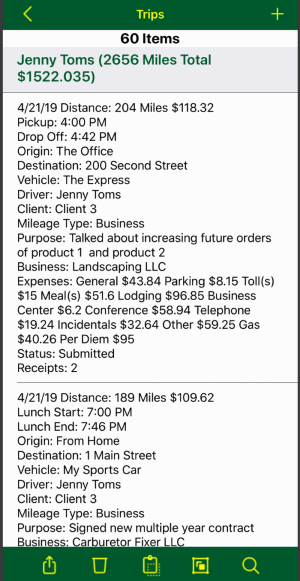
Buying this add-on allows you to generate reports with total mileage and total reimbursement for each driver.
|