- Access the TMM Store (tap here to learn how)
- Then tap the
 button in the upper right corner button in the upper right corner

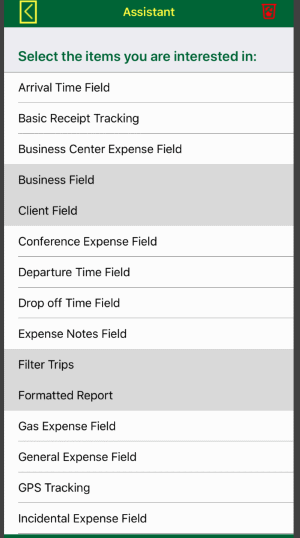
- Next select the add-ons you are interested in, then tap the
 button to return to the TMM Store. button to return to the TMM Store.
- Note: the visual difference of the
 button when the store assistant is active button when the store assistant is active

- No active filtering
- Store is being filtered
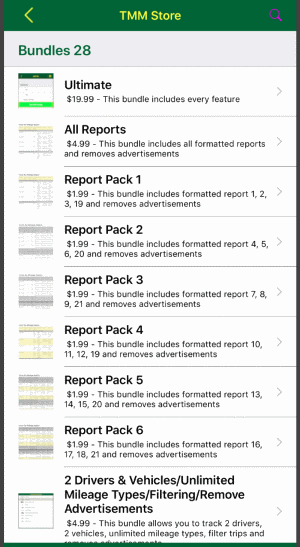
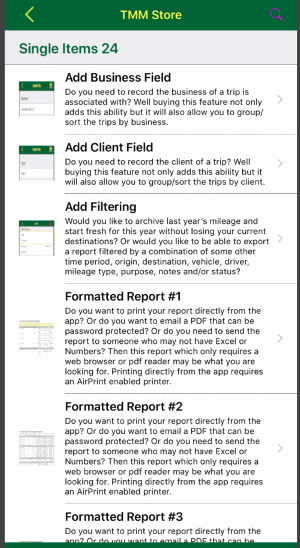
- The TMM Store now shows the add-ons you are interested in and any discounted bundles that contain any of those add-ons.
- To clear the selected add-ons, access the TMM Store Assistant then tap the
 button in the upper right corner. button in the upper right corner.

|
|
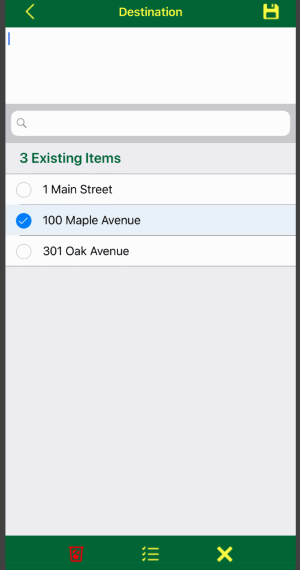
On the existing items page:
- Tap the
 button on the toolbar at the bottom. button on the toolbar at the bottom.
Note: You may need to tap the  button to hide the keyboard/suggestions to reveal the button. button to hide the keyboard/suggestions to reveal the button.

- Then tap the rows you want to delete or select all rows by tapping the
 button. To complete deleting the selected rows, tap the button. To cancel deleting, tap the button. To complete deleting the selected rows, tap the button. To cancel deleting, tap the  button. button.
|
- If necessary tap the or
 button to show the main menu, then tap the "Exclusion List" row. button to show the main menu, then tap the "Exclusion List" row.
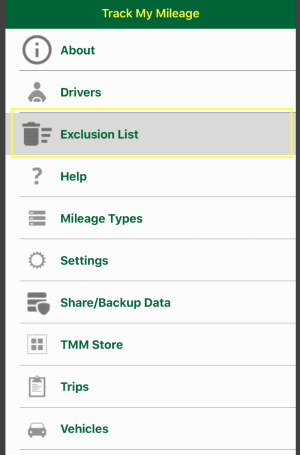
- Then tap the button on the toolbar at the bottom.

- Next tap the rows you want to delete or select all rows by tapping the button. To complete deleting the selected rows, tap the button. To cancel deleting, tap the button.
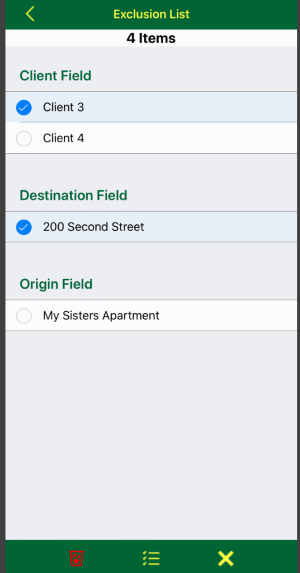
|
|
Trips not linked to a mileage type use the global rate which can be changed on the settings page.
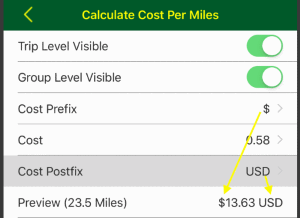
Trips linked to a mileage type will use one of the rates setup for that mileage type where the date of the trip falls in between the start and the end of the rate.
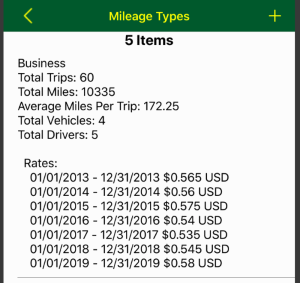
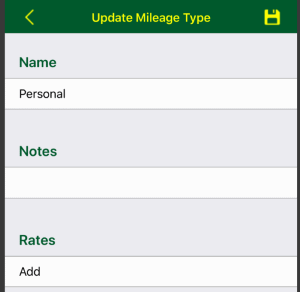
If you need to track some trips that don't need a rate calculation then setup a mileage type, for example called personal, with no rates and link those trips to that mileage type.
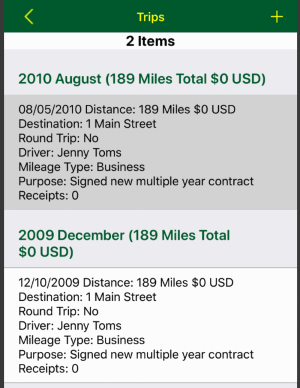
If you linked a trip to a mileage type but the rate is not being calculated, confirm that you have a mileage rate with a start and end date that the date of the trip falls in between. For example if you only have a single rate with a start date of the first of last year and the end date is the end of last year, then trips for this year will not a have a calculation.
|
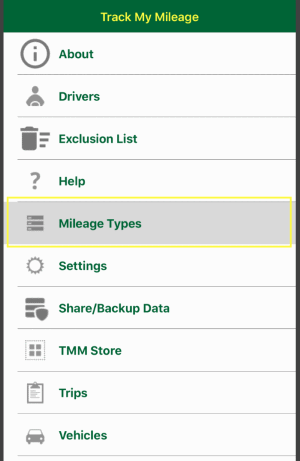
- If necessary tap the or button to show the main menu, then tap the "Mileage Types" row.
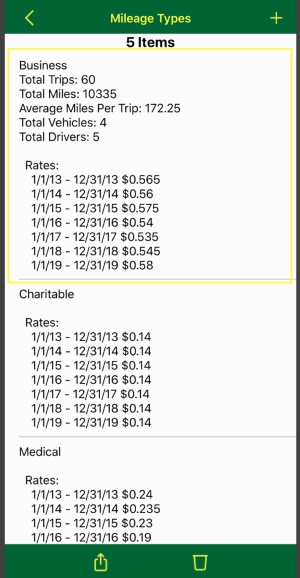
- Next on the "Mileage Types" page tap the entry you want to edit:
- If you want to add a mileage rate, scroll down to the rates section then:
- Tap the last row.
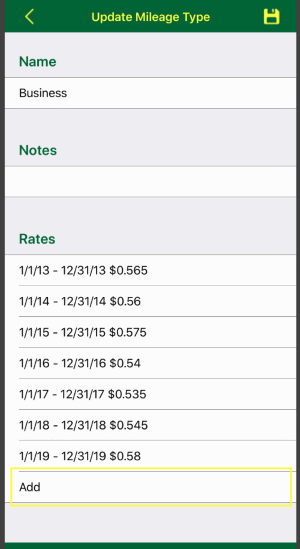
- After entering the details, tap the
 button to temporarily add your change or tap the button to lose any changes. button to temporarily add your change or tap the button to lose any changes.
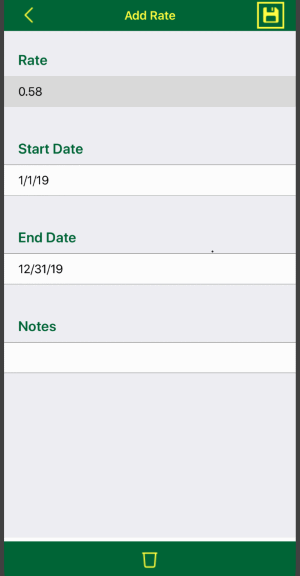
- To commit your changes including the new mileage rate you MUST tap the button on the Mileage Type edit screen.

- If you want to update a mileage rate, scroll down to the rates section then:
- Tap the mileage rate you want to update.
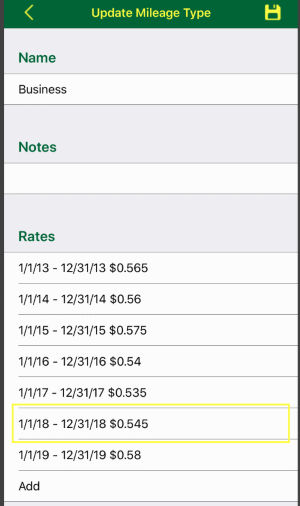
- After entering the details, tap the button to temporarily add your change or tap the button to lose any changes.
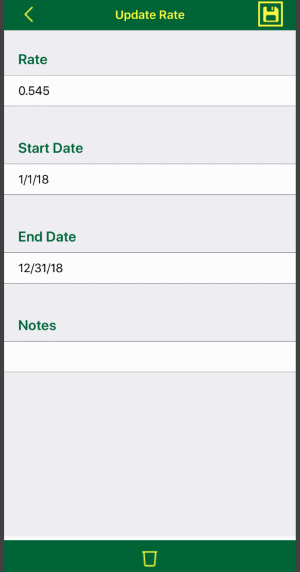
- To commit your changes including the updated mileage rate you MUST tap the button on the Mileage Type edit screen.
- If you want to delete a mileage rate, scroll down to the rates section then:
- Tap the mileage rate you want to delete.
- Next tap the button on the toolbar at the bottom.

- To commit your changes including the mileage rate deletion you MUST tap the button on the Mileage Type edit screen.
|